
Audio Bitrate for Video: How Many kbps Do You Actually Need?
You export the same clip twice. One file lands at 96 kbps, the other at 320, and the second is more than three times the size. You play them back to back and hear nothing different, because there’s nothing different to hear: the first encode threw the detail away, and the second just made a bigger copy of what survived.
That’s the trap with audio bitrate in video work. The number gets treated as a quality score when it’s a budget that gets spent once, and no later setting buys back what the first export threw away. This guide is about the audio stream specifically. For the picture side, see the video bitrate guide; if you’re still choosing between AAC, Opus and MP3, the audio codec comparison covers that, and sample rate is a separate decision explained in 44.1 kHz vs 48 kHz.
What audio bitrate actually controls
Audio bitrate is the number of bits per second the encoder may spend on sound. It isn’t a dial that maps to a listener score: the encoder takes that budget and decides, frame by frame, which frequencies and quiet details it can drop without you noticing. Two things come out of that decision, and they stop improving at different points.
The first is bandwidth: how much of the frequency range survives. The second is accuracy inside the range that survives, which a null test measures by subtracting the decoded file from the lossless master and weighing the error. FFmpeg’s documentation for its native AAC encoder says setting -b:a switches it into constant bitrate mode, with 128 kbps as the default when you pass nothing. The encoder also carries a cutoff control, and when you leave it unset it moves the cutoff dynamically to keep clarity at low rates. That’s the mechanism behind the numbers below: under roughly 128 kbps the encoder is mostly buying bandwidth, so it spends the budget cutting off the top of the spectrum rather than coding it badly.
The measured audio bitrate ladder
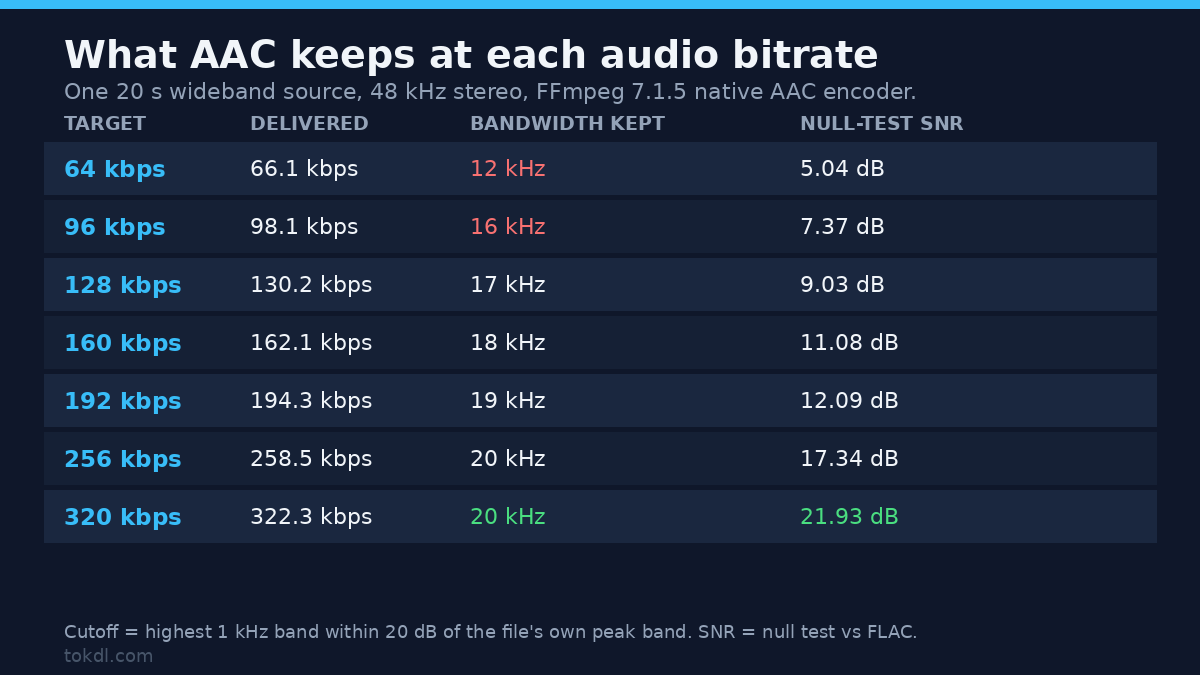
I encoded one 20 second source at seven audio bitrate settings with FFmpeg 7.1.5’s native AAC encoder, then measured each output against the lossless FLAC it came from. The source is wideband noise, flat-ish to 20 kHz and harder than speech: -3.1 dBFS peak, 48 kHz, stereo. Bandwidth is the highest 1 kHz band still within 20 dB of the file’s own strongest band, and SNR is the null test over seconds 3 to 18 after aligning the decoder delay.
| Target | Delivered average | Bandwidth kept | Null-test SNR |
|---|---|---|---|
| 64 kbps | 66.1 kbps | 12 kHz | 5.04 dB |
| 96 kbps | 98.1 kbps | 16 kHz | 7.37 dB |
| 128 kbps | 130.2 kbps | 17 kHz | 9.03 dB |
| 160 kbps | 162.1 kbps | 18 kHz | 11.08 dB |
| 192 kbps | 194.3 kbps | 19 kHz | 12.09 dB |
| 256 kbps | 258.5 kbps | 20 kHz | 17.34 dB |
| 320 kbps | 322.3 kbps | 20 kHz | 21.93 dB |
Read the two right-hand columns separately. Bandwidth runs out first: 12 kHz at 64 kbps, 16 at 96, then about one more kilohertz per step until 256 kbps reaches the 20 kHz top of the source. Accuracy keeps climbing after that. Going from 256 to 320 kbps adds no bandwidth, yet the null-test SNR jumps from 17.34 to 21.93 dB. So 320 kbps isn’t a marketing number, but what it buys is accuracy, not extension. Note also that the delivered averages sit slightly above the targets, because frame headers and padding count as audio bitrate too.
How to check the audio bitrate of a file you already have
Before choosing a number, find out what you’re starting from. One ffprobe command answers it:
ffprobe -v error -select_streams a:0 -show_entries stream=codec_name,bit_rate,channels,sample_rate -of default=nw=1 input.mp4That prints the codec, the audio bitrate the container claims, the channel count and the sample rate. Two traps sit in the output.
The first is that the field can be missing entirely, not zero. Probing a 128 kbps Opus file in Ogg gave codec, channels, sample rate and duration, and no bit_rate key at all. Reading that key and falling back to zero reports a silent file. Compute the average from size and duration instead: an Opus file encoded at a 128 kbps target measured 292,752 bytes over 20.0065 seconds, which is 117.1 kbps. That isn’t an error, it’s what variable bitrate looks like when the content doesn’t need the whole budget.
The second trap is that the container’s number is a declaration, not a measurement. It tracks the encoder target in MP4 and M4A, and it can be absent in Ogg. When the two disagree, trust the arithmetic.
How many kbps should you use?
There’s no single audio bitrate that fits every video, because the answer depends on the content, the channel count and the destination. One number for all video is how people ship a 320 kbps mono voiceover that sounds exactly like the 96 kbps version.
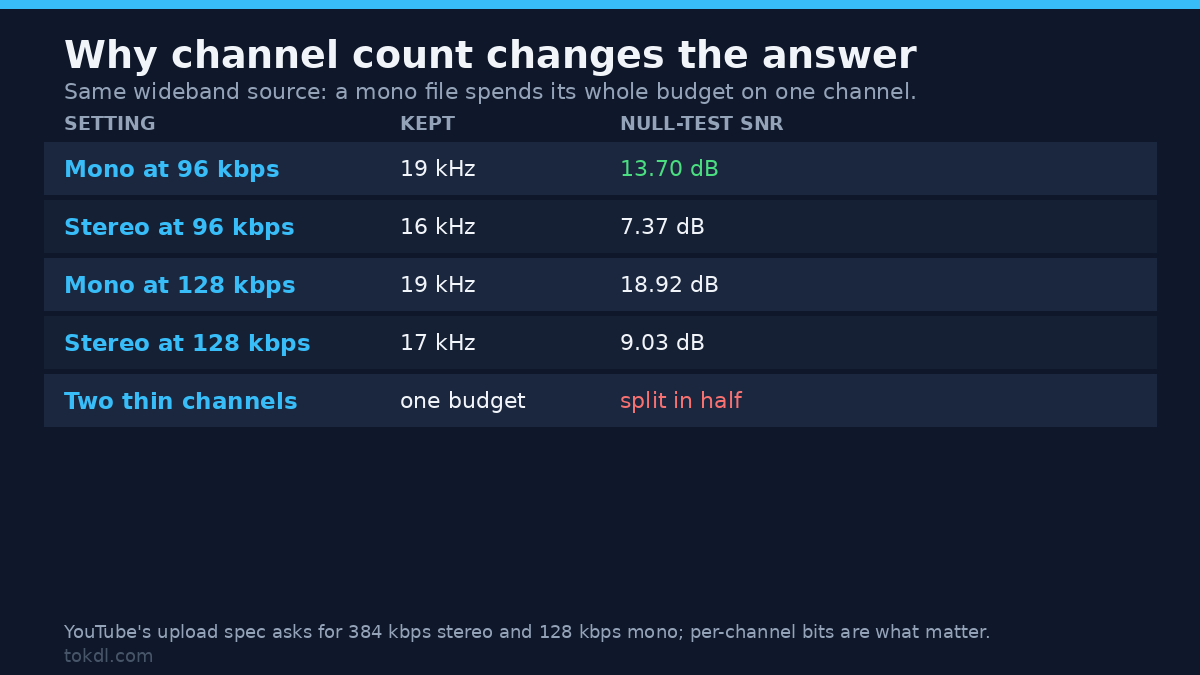
Channel count is the variable people skip. The audio bitrate budget is shared, so 128 kbps stereo is 64 kbps per channel. The same wideband source at a 96 kbps budget scored 13.70 dB in mono and 7.37 dB in stereo, and at 128 kbps it scored 18.92 dB in mono against 9.03 dB in stereo. Mono isn’t automatically worse; a mono file at 96 kbps does twice the work per channel that stereo at 96 kbps can afford.
| Use case | Audio bitrate | Size per hour |
|---|---|---|
| Voiceover, podcast, interview (mono) | 96 to 128 kbps | 43 to 58 MB |
| General video, stereo | 128 to 192 kbps | 58 to 86 MB |
| Music-led video, stereo | 192 to 256 kbps | 86 to 115 MB |
| Master or archive, stereo | 320 kbps or lossless | 144 MB |
| YouTube upload spec, stereo | 384 kbps | 173 MB |
Those size figures are arithmetic from the rate, not measurements: one hour at 128 kbps is 57.6 MB, and each doubling doubles it. YouTube’s upload page recommends 128 kbps for mono, 384 kbps for stereo and 512 kbps for 5.1, and notes that audio playback bitrate has nothing to do with video resolution. That’s a handoff target, not a promise about what viewers receive, because the platform re-encodes whatever you give it. Handing it a thin 96 kbps track gives it less to work with, which is the practical reason to export audio once, properly, instead of compressing twice.
Method 1: set the audio bitrate with FFmpeg
The common task is changing the audio without touching the picture, and the flag that makes that safe is -c:v copy:
ffmpeg -i input.mp4 -c:v copy -c:a aac -b:a 192k output.mp4That re-encodes the audio once and copies the video stream untouched. Swap 192k for a number from the table. If the file carries several audio tracks, add -map 0 so they all survive, and set the audio bitrate per stream instead of once if they differ.
There’s a variable bitrate alternative: -q:a on the native AAC encoder. It isn’t a ceiling. At -q:a 2 my 20 second file averaged 325 kbps, and at -q:a 5 it averaged 442.5 kbps. The documentation explains the scale: quality 1 lands near 128 kbps for typical stereo music, each doubling raises the rate by roughly a third, and values above about 6 make no further difference. Need a known file size? Use -b:a. Want the encoder to follow the content? Use -q:a and accept that you won’t know the size in advance.
Now the trap that costs people an hour. This command exits 0 and changes nothing:
ffmpeg -i input.m4a -c:a copy -b:a 320k output.m4aStream copy passes the bytes through, so there’s no encoding step for the bitrate flag to influence. Measured on a 96 kbps source, the output came back at 98.1 kbps with the same size and the same 16 kHz ceiling. No warning, no error, no effect. Changing an audio bitrate means decoding and re-encoding.
Method 2: set it in an editor or HandBrake
Every editor exposes the same control under another label. In HandBrake it’s on the Audio tab: pick AAC, choose the mixdown, then switch between Bitrate and Quality, where the Quality slider is variable and behaves like -q:a. Premiere calls the field Audio Bitrate and usually offers 128, 192, 256 and 320 kbps; CapCut’s panel has fewer steps. Match the channel count to the content, don’t go below the source’s own rate, and check the result with ffprobe instead of trusting the label.
Why a higher audio bitrate cannot add detail
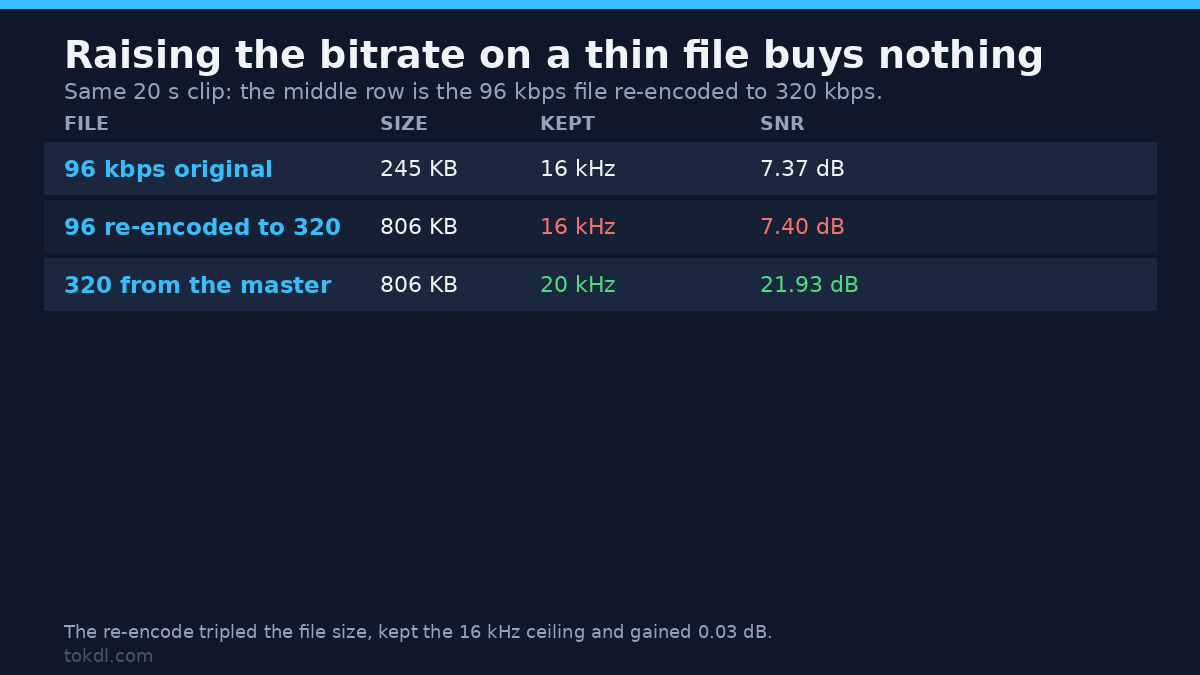
This is the measurement that changes how people work. I took the 96 kbps file and re-encoded it to 320 kbps, then compared all three files against the lossless master.
| File | Size | Bandwidth kept | Null-test SNR |
|---|---|---|---|
| 96 kbps original | 245 KB | 16 kHz | 7.37 dB |
| 96 kbps re-encoded to 320 | 806 KB | 16 kHz | 7.40 dB |
| 320 kbps from the master | 806 KB | 20 kHz | 21.93 dB |
The re-encode tripled the file size, kept the 16 kHz ceiling exactly, and improved the null-test score by 0.03 dB. The 4 kHz the first encode discarded is gone; a second encoder can’t invent it, and the bits it spends go on reproducing the first encoder’s artifacts more faithfully. Going back to the master is the only way to recover the missing bandwidth, which is why keeping the original camera or recorder audio matters more than any export setting.
What a bitrate change will not fix
Audio bitrate is one lever among several, and it’s the wrong one for most complaints. If the track is clipped, raising the bitrate preserves the distortion more accurately; repair it first, as described in fixing audio clipping. If levels jump between scenes, the problem is loudness, so reach for normalization or a limiter. Quiet room tone won’t leave because the number went up, and mono exported as stereo is still mono.
Six mistakes worth avoiding
1. Choosing 320 kbps for a source that’s already thin. The table above is the proof: three times the size, no bandwidth gained. Check the source first with ffprobe.
2. Setting -b:a next to -c:a copy. The flag is accepted, the command exits 0, and the stream is unchanged. The encoder has to run for the number to mean anything.
3. Forgetting that the budget is shared. 128 kbps stereo is 64 kbps per channel, so a mono file at the same audio bitrate isn’t the same quality.
4. Reading the container’s number as a measurement. It declared 128 kbps where the file averaged 130.2, and Opus in Ogg reports nothing at all. Compute bits from size and duration when it matters.
5. Treating -q:a as an audio bitrate ceiling. Quality 5 landed at 442.5 kbps on dense content. Variable bitrate means variable.
6. Re-encoding lossy audio repeatedly. Each generation adds damage, so cut and trim with stream copy where you can and re-encode once, at the end.
Frequently asked questions
Is 320 kbps always better than 128 kbps?
No. On a dense source it’s measurably better: 21.93 dB against 9.03 dB in my null test, with 3 kHz more bandwidth. On a file already encoded at 96 kbps, it changes almost nothing and triples the size.
What audio bitrate should I upload to YouTube?
YouTube asks for 128 kbps mono, 384 kbps stereo and 512 kbps for 5.1. Those are upload targets, and the platform transcodes afterwards. Exporting at 384 kbps stereo is cheap insurance; exporting at 96 kbps stereo gives the platform little to work with.
Why does ffprobe show no bitrate for my audio?
Some containers don’t carry the field. Opus in Ogg is the common case, where the key is missing rather than zero. Use file size and duration to compute the average, and treat the result as an average, not a constant.
Is 96 kbps enough for speech?
In mono, usually yes. My speech-band source scored 17.58 dB at 96 kbps mono against 9.38 dB for the same budget in stereo, because all the bits went to the one channel that exists. Stereo music at 96 kbps loses the top 4 kHz.
The short version
Pick the audio bitrate from the content and the channel count, not from the biggest number in the dropdown. Speech in mono sits at 96 to 128 kbps, general stereo video at 128 to 192, music at 192 to 256, and a master at 320 or lossless. Check what your source already carries, remember that -b:a does nothing beside -c:a copy, and keep the original audio, because no export setting restores bandwidth an earlier encode removed.