
Pixel Aspect Ratio: Why Your Video Looks Stretched (2026)
A 720 by 480 clip looks fine in one player and slightly wide in another. Drop the same file on a timeline and it’s squeezed. Nothing is corrupt, and the codec did exactly what it was told. A video carries two shapes at once: how many pixels are stored, and how wide each pixel should be drawn. That second number is the pixel aspect ratio, and it’s the one nobody opens until something looks wrong.
This isn’t the same problem as choosing a frame shape. If you’re deciding between 16:9 and 9:16 for a platform, the guide to video aspect ratio covers that decision. Here the frame stays put. What changes is the width of the bricks inside it, and a pixel aspect ratio that lies about those bricks is the entire bug.
I measured every number below on FFmpeg 7.1.5 with a test clip holding one perfect circle, which turns the distortion into pixels you can count.
What you’ll learn
You’ll learn to read a file’s real geometry in one command, relabel a wrong pixel aspect ratio without re-encoding, and convert to square pixels without squashing faces. The circle measurements below show what each command does, including two that fail quietly.
What a pixel aspect ratio changes
Three numbers describe geometry. The stored width and height say how many pixels the encoder wrote. The pixel aspect ratio, usually shortened to SAR, tells you how wide each of those pixels should be drawn. Multiply them and you get the display aspect ratio (DAR), the shape a player shows:
DAR = (width x SAR_width) / (height x SAR_height)

720 x 480, SAR 32:27  ->  (720 x 32) / (480 x 27)  =  1.7778  =  16:9
When the pixel aspect ratio is 1:1, pixels are square and everything is simple. Footage from DVDs, DV tape, some capture cards and a few phone modes is stored with rectangular pixels instead. A 720 by 480 frame can legitimately be 4:3 or 16:9, and only the SAR field tells you which one you’re holding.
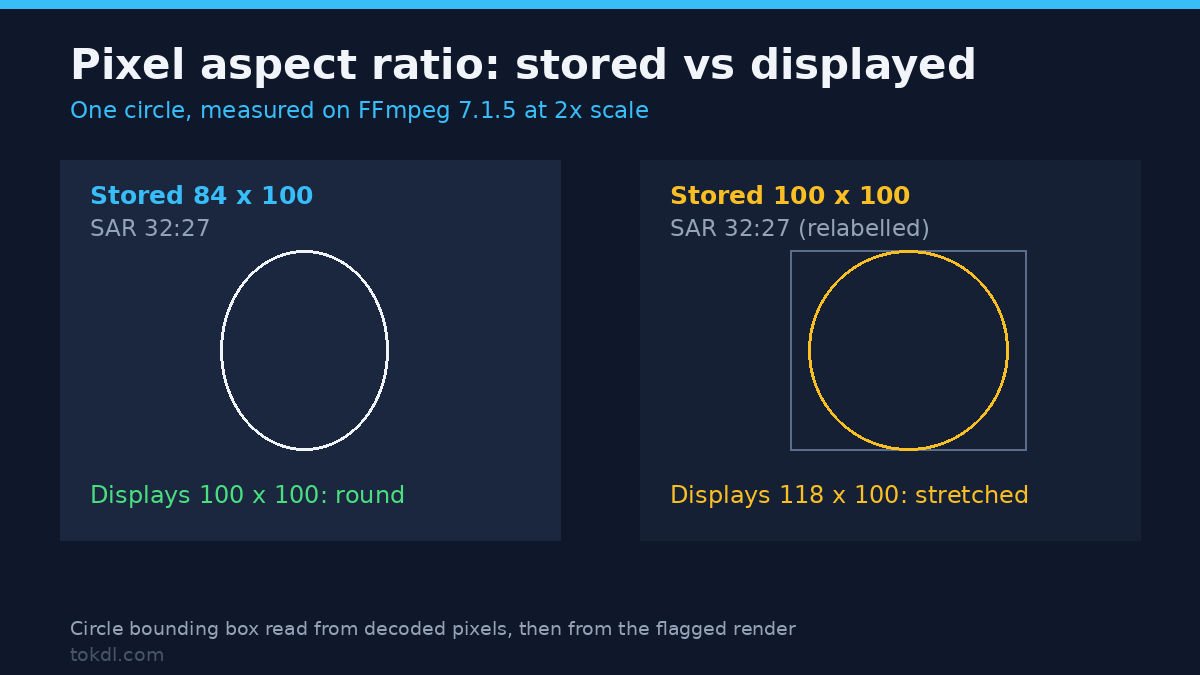
That’s why one coded frame can be two pictures. In my test, a circle stored as 84 by 100 pixels with a pixel aspect ratio of 32:27 came back 100 by 100 once the player applied the flag. The stored ellipse was correct for an anamorphic file; the player made it round.
Read the pixel aspect ratio before you touch anything
One ffprobe call gives you the pixel aspect ratio and the display shape side by side. If you keep a probe command around, this is the variant worth adding:
ffprobe -v error -select_streams v:0
  -show_entries stream=width,height,sample_aspect_ratio,display_aspect_ratio
  -of default=nw=1 yourfile.mp4
On a plain square-pixel encode, FFmpeg 7.1.5 prints sample_aspect_ratio=N/A and display_aspect_ratio=N/A, not 1:1. That surprised me. The file carries no pixel-aspect box, and every player treats the missing value as square, which matched the measurement: a 100 by 100 circle came back 100 by 100 on screen. A missing pixel aspect ratio isn’t damage, it’s the default.
Here’s one circle through eight pipelines, with the shape measured from decoded pixels and the displayed shape measured after applying the flag:
| Pipeline | Stored | SAR | DAR | Circle stored | Circle displayed |
|---|---|---|---|---|---|
| Plain square-pixel encode | 720×480 | N/A | 3:2 | 100×100 | 100×100 |
Same stream, -aspect 16:9 |
720×480 | 32:27 | 16:9 | 100×100 | 118×100 |
Same stream, -aspect 4:3 |
720×480 | 8:9 | 4:3 | 100×100 | 88×100 |
| Anamorphic source, SAR 32:27 | 720×480 | 32:27 | 16:9 | 84×100 | 100×100 |
Same file, setsar=1 |
720×480 | 1:1 | 3:2 | 84×100 | 84×100 |
Upscaled with scale=1920:1080 |
1920×1080 | 1:1 | 16:9 | 224×226 | 224×226 |
Scaled to 640×480 with setsar=1 |
640×480 | 1:1 | 4:3 | 74×100 | 74×100 |
| Cropped 640×480 from anamorphic | 640×480 | 32:27 | 128:81 | 84×100 | 99×100 |
Two rows carry the lesson. Row two is the classic stretched export: square pixels relabelled as 16:9, so a round subject comes out 18 percent wider. Row five is the classic squashed export: the flag removed from an anamorphic file, so the same subject comes out 16 percent narrower. Both are one pixel aspect ratio field away from correct.
Why so much footage isn’t square
Broadcast and DVD storage had a fixed pixel budget. Rather than store widescreen as more pixels, the format kept a 4:3 frame and told the player to stretch it on playback. That saved bitrate on hardware from an era when bitrate was the whole game, and the convention outlived the hardware.
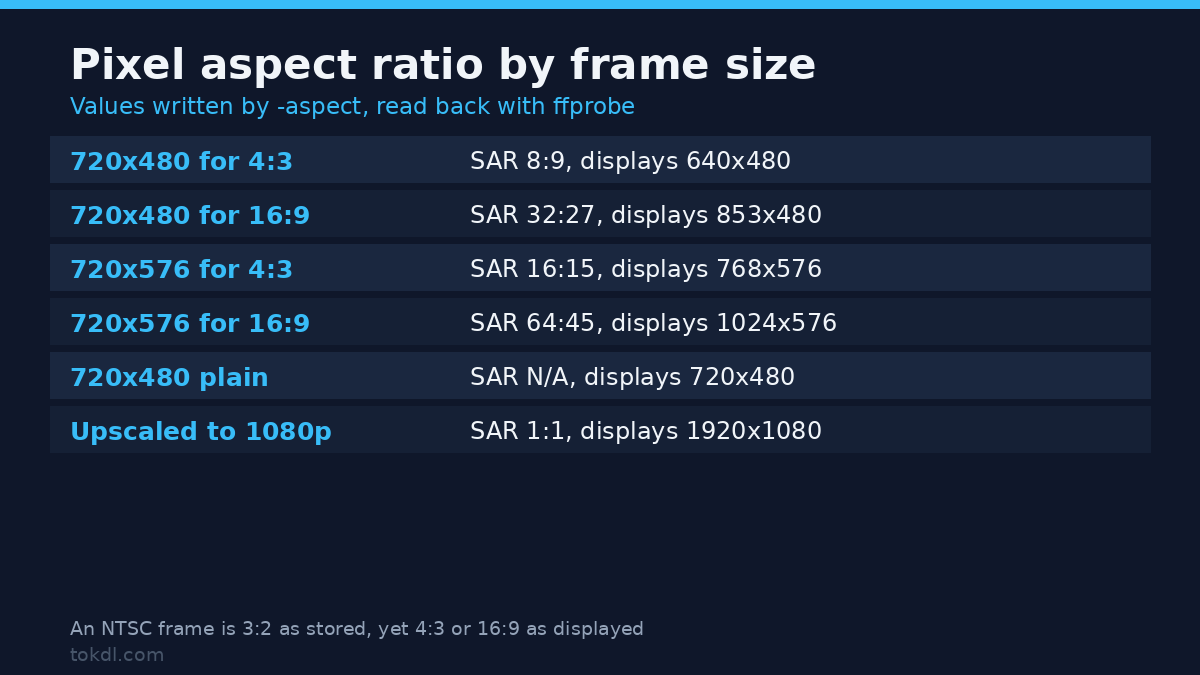
The pixel aspect ratio values that make this work aren’t folklore. They’re what -aspect writes when you ask for a shape, and I measured all four by encoding a still and reading the fields back:
| Stored frame | Requested shape | SAR written | Display width |
|---|---|---|---|
| 720×480 (NTSC) | 4:3 | 8:9 | 640 |
| 720×480 (NTSC) | 16:9 | 32:27 | 853.3 |
| 720×576 (PAL) | 4:3 | 16:15 | 768 |
| 720×576 (PAL) | 16:9 | 64:45 | 1024 |
Note the display width in row two: 853.3 pixels. You can’t write 853.3 pixels into a frame, which matters later.
Fix one: rewrite the pixel aspect ratio without touching pixels
If the footage is genuinely anamorphic and only the flag is wrong, a stream copy repairs the pixel aspect ratio in place. Nothing is decoded, nothing is re-encoded, and the picture data stays byte for byte identical:
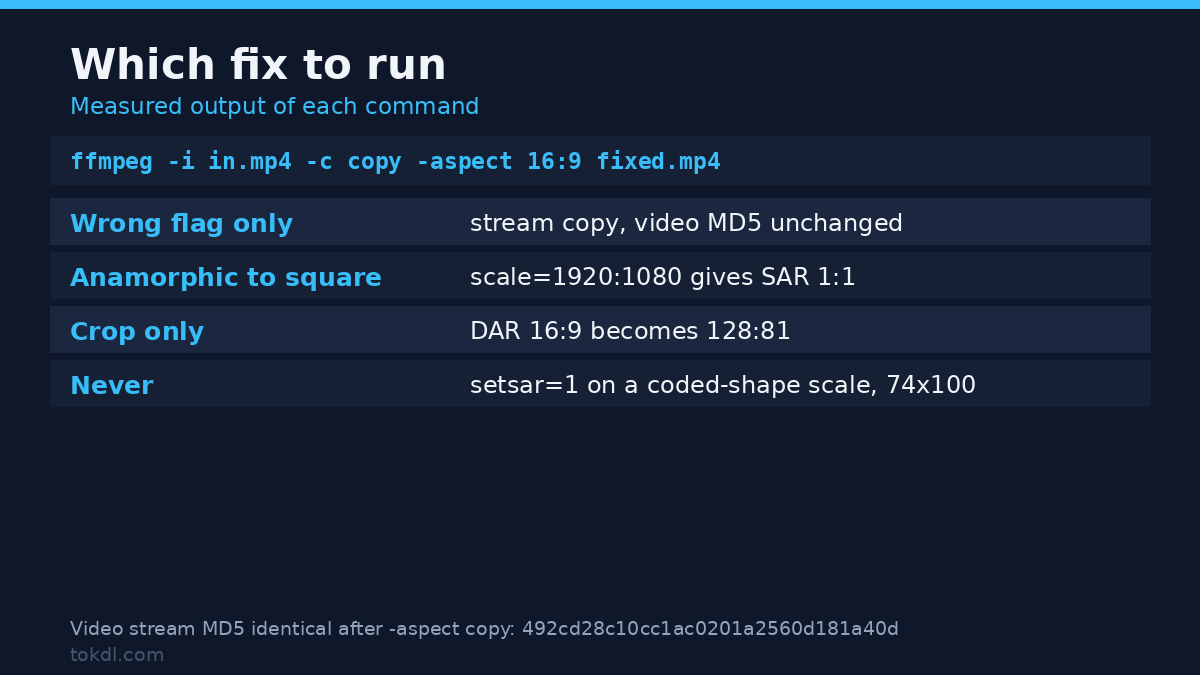
ffmpeg -i input.mp4 -c copy -aspect 16:9 fixed.mp4I checked that rather than assuming it. The video stream of the relabelled file has the same MD5 as the source, 492cd28c10cc1ac0201a2560d181a40d, and the only change is the pixel aspect ratio the container advertises. On a long clip that’s the difference between a few seconds and a full encode pass.
The same flag landed in every container I tried: MP4, MKV, MOV and a transport stream all reported SAR 32:27 and DAR 16:9 after a copy. That matters when one editor reads a format correctly and another doesn’t.
The catch is direction. This command tells the player to stretch the picture, so use it on files whose pixels are already squeezed. Applied to a square-pixel file it creates the defect: my 100 by 100 circle became 118 by 100 as soon as I added the flag to a plain encode. Relabelling is a repair, not a polish.
Fix two: bake the pixel aspect ratio into the pixels
Delivering to platforms, phones and web players is easier with square pixels and no flag. The command that handles it well is shorter than the one that breaks it:
ffmpeg -i anamorphic.mp4 -vf scale=1920:1080 -c:v libx264 -crf 18 out.mp4The part worth knowing: scale doesn’t drop the pixel aspect ratio, it writes the one that keeps the display shape. A 720 by 480 file with SAR 32:27 became 1920 by 1080 with SAR 1:1, and my ellipse came out 224 by 226, round. When I asked for 1440 by 1080 instead, FFmpeg wrote SAR 4:3 to preserve 16:9. When I asked for 854 by 480, it wrote SAR 1280:1281, a ratio that exists purely to make the math land on 16:9.
The trap is what people add on top. setsar=1 looks like a safety flag; it’s the opposite. Take an anamorphic source, scale it to 640 by 480 for a smaller file, force setsar=1, and the circle comes out 74 by 100. FFmpeg had already written SAR 4:3 to keep the shape; forcing the pixel aspect ratio to 1:1 threw that away. Scale alone at 640 by 480 measured SAR 4:3 and a correct 16:9 display shape.
Two more results from the sweep belong in your notes. The obvious de-squeeze filter fails on this build: scale=iw*sar:ih,setsar=1 computes a display width of 853 for a 720 wide anamorphic frame, and libx264 refuses odd widths with width not divisible by 2 (853x480). No file gets written. Round it to an even number, scale=round(iw*sar/2)*2:ih, or target a fixed size like 854 by 480.
Scaling with only one dimension keeps the flag. scale=1920:-2 produced 1920 by 1280 with SAR 32:27. The display shape was still 16:9, so nothing looked wrong locally, but a 3:2 stored frame is a delivery problem for services that expect 1920 by 1080. Give both dimensions when the target has a known shape.
Cropping moves the declared pixel aspect ratio
Cropping feels neutral. It isn’t. Cropping changes the stored pixel count while the SAR stays attached, so the declared shape moves with it.
In the test, cropping an anamorphic 720 by 480 file to 640 by 480 left the pixel aspect ratio at 32:27 and pushed DAR from 16:9 to 128:81, which is 1.58. The circle stayed round in the delivered pixels (99 by 100 after the flag), so the picture is fine. The advertised shape is not, and a player that letterboxes to the declared DAR shows it differently from one that doesn’t.
Six mistakes that cause most stretched exports
The mistakes that account for most stretched exports, in the order they usually show up:
- Trusting the preview. A preview shows one program’s interpretation. The flag travels with the file, and ffprobe reads what’s actually declared.
- Reading 720 by 480 as 3:2. That’s true only when the pixel aspect ratio is 1:1 or missing. With 32:27 the same frame is 16:9, and the gap is a third of the image width.
- Forcing the pixel aspect ratio to 1:1 as a habit. Measured result: 74 by 100 instead of 100 by 100. It only belongs after a scale that already produced the display shape.
- Delivering 1920 by 1280. It keeps the shape and passes a quick look, then trips upload checks that expect a 16:9 frame.
- Assuming a crop keeps the shape. 128:81 is not 16:9, and the file says so.
- Relabelling square pixels to fix them. The most common misfire, and it manufactures the stretch people are trying to remove.
Frequently asked questions
Is pixel aspect ratio the same as display aspect ratio?
No. The pixel aspect ratio describes the width of one pixel; the display ratio describes the finished frame. A 720 by 480 frame can be 3:2, 4:3 or 16:9 depending on the SAR, and the display ratio is the product.
ffprobe reports sample_aspect_ratio=N/A. Is the file broken?
No. A plain square-pixel encode on FFmpeg 7.1.5 carries no pixel aspect ratio field at all, so ffprobe prints N/A and players assume square pixels. The measured circle stayed 100 by 100, which is the correct behaviour.
Does the metadata-only copy change anything else?
The video stream stayed byte-identical in my test, down to the MD5. Only the container’s pixel aspect ratio field changed. Audio is copied too, so there’s no generation loss.
Why did the de-squeeze command fail with an odd width?
Because a 720 pixel frame at SAR 32:27 has a display width of 853.3, and libx264 can’t encode an odd width with 4:2:0 colour. Round the width to an even number before encoding.
Can I fix the pixel aspect ratio on a phone?
Some mobile editors expose a pixel aspect or stretch control and some don’t. When it’s missing, convert once on a computer and keep the square-pixel copy for editing. One clean conversion beats fighting the app on every export.
Does converting cost quality?
A flag-only copy doesn’t touch the picture. A re-encode does, so do it once at a quality setting you’re happy with (crf 18 to 23 for H.264). If you’re also resizing, the guide to downscaling 4K to 1080p covers where the detail goes.
The order that works
Probe first, decide second, convert once. Read the pixel aspect ratio and the display shape with ffprobe. If the pixels are anamorphic and only the flag is wrong, copy with -aspect and stop there. If you need square pixels, scale with both dimensions and check the output with ffprobe before it goes anywhere. If you crop, re-check the declared shape afterwards.
Keep the original, and keep the measurement habit. A relabel is reversible, a re-encode isn’t, and a fourteen-second probe of the pixel aspect ratio beats an afternoon of guessing.
For files that look wrong for another reason, check the basics: reading a file’s real specs with ffprobe catches frame rate and codec faults, variable frame rate explains drift that looks like sync trouble, deinterlacing handles old SD combing, and the HandBrake settings guide shows where the aspect controls live in a GUI.
Further reading: the FFmpeg docs for scale and setsar list every option used above, and Apple’s QuickTime file format reference explains how the value is stored in the container.