
How to Calculate Video Bitrate (and Predict Your File Size Before You Export)
Last month a 12-minute screen recording refused to upload to a client’s form. The limit was 500 MB. My export came out at 780 MB, and I found that out by watching a progress bar stall at 68%. One division would have told me the ceiling before I ever pressed Export.
That division is what this article is about. Learning how to calculate video bitrate takes about three minutes, and it turns file size from a nasty surprise into something you decide in advance. I’ll show both formulas, run real numbers through them, and then be honest about the places where the arithmetic stops matching what your encoder does.
The two formulas behind every file size
Bitrate is how many bits travel per second of video. File size is how many bits you ended up with. Duration is the bridge between them.
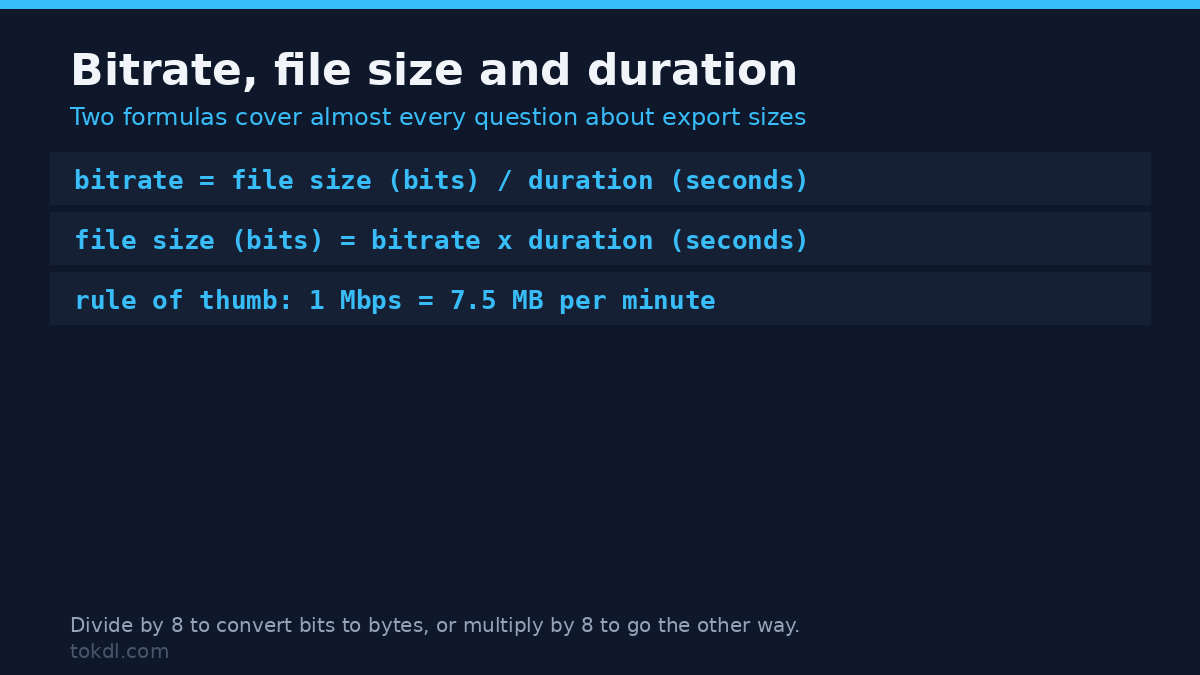
bitrate (bits per second) = file size (bits) ÷ duration (seconds)
file size (bits) = bitrate × duration (seconds)
Units are where people lose the plot. Bitrate is counted in bits. The size your file manager shows you is counted in bytes, and there are eight bits to a byte. Miss that step and you’re off by a factor of eight, which is the distance between a 500 MB export and a 4 GB one.
One more wrinkle worth internalising. Operating systems usually mean MiB (1,048,576 bytes) when they say MB, while bitrate figures work in tidy decimal millions. The difference is roughly 5%, which is close enough when you’re planning an export. Here is the shorthand that does most of the work in practice: at 1 Mbps, you collect about 7.5 MB every minute, because 60 seconds divided by 8 bits per byte is 7.5.
How to calculate video bitrate from a file you already have
Say you’ve a 100 MB clip that runs five minutes. Convert the size to bits first, then divide by the runtime.
100,000,000 bytes × 8 = 800,000,000 bits
800,000,000 ÷ 300 seconds = 2,666,667 bits per second, about 2.7 Mbps
That 2.7 Mbps is the total for the whole file, and it includes the audio. If the audio track sits at 128 kbps, the video stream is running at roughly 2.54 Mbps, because the two share one budget. This is the answer to a question I see constantly in editing forums: why does an “8 Mbps” export show 8.2 Mbps in a file inspector? Audio is real data and it spends real bits.
Predicting the size before you export
This direction is the one most people need, and it’s the reverse of what we just did. Flip the formula and you can answer “will this fit?” without touching a calculator.
Take a ten-minute clip encoded at 8 Mbps with a 128 kbps audio track. Total bitrate is 8.128 Mbps. Multiply by the 600 seconds, then divide by eight to land back in bytes.
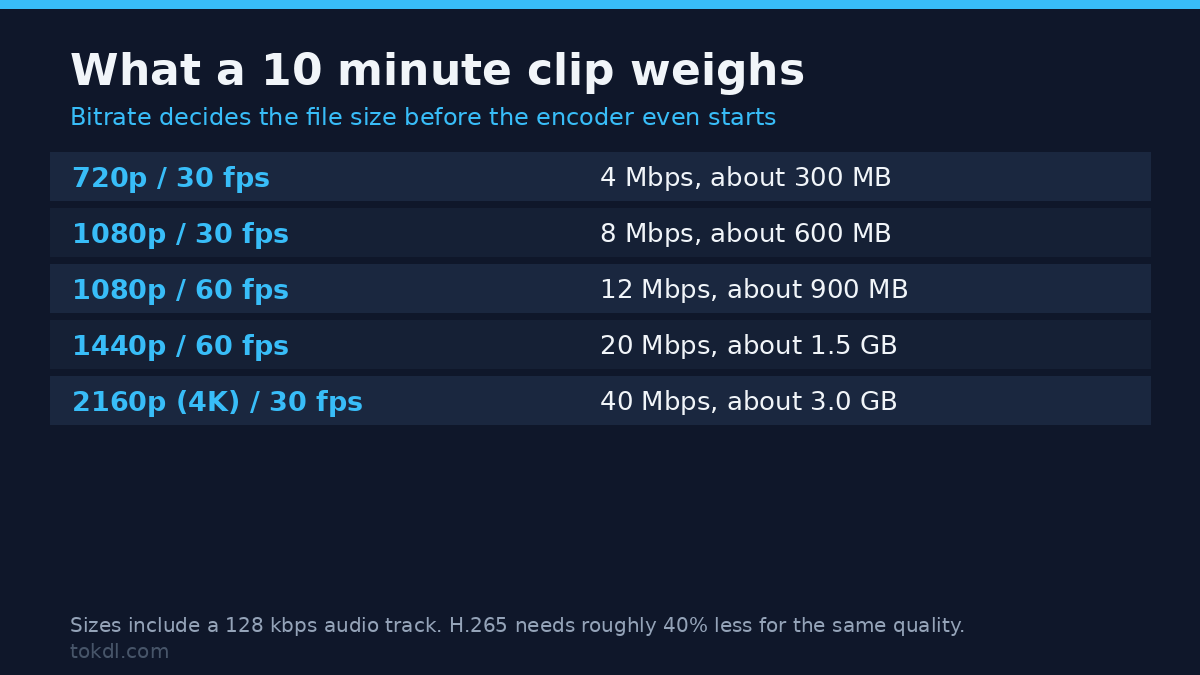
8,128,000 bits per second × 600 seconds ÷ 8 = 609,600,000 bytes, about 610 MBThat scales predictably, which makes it easy to plan. For a ten-minute clip:
| Export setting | Total bitrate | File size (10 minutes) |
|---|---|---|
| 720p at 30 fps | 4 Mbps | 300 MB |
| 1080p at 30 fps | 8 Mbps | 600 MB |
| 1080p at 60 fps | 12 Mbps | 900 MB |
| 1440p at 60 fps | 20 Mbps | 1.5 GB |
| 2160p (4K) at 30 fps | 40 Mbps | 3.0 GB |
One thing that table assumes: H.264. If you export with H.265 (HEVC), you can cut every bitrate figure by roughly 40% and land at similar quality. Hardware support is the trade-off, since older TVs and some browsers won’t play it.
Reading that table the other way is more useful than reading it forwards. Decide your size limit, divide by the runtime in minutes, then divide by 7.5 to get your bitrate ceiling.
500 MB limit ÷ 12 minutes = 41.7 MB per minute
41.7 ÷ 7.5 = 5.6 Mbps
Which means the recording that failed for me should have been exported at about 5.5 Mbps instead of the 11 Mbps my capture preset had been using. Same footage, same resolution, no visible difference on a screen recording that’s mostly static text. The entire fix took less time than reading the upload error message did.
If you’re weighing 1080p against 4K for a project that has a size budget, the resolution comparison is worth a look before you do this math, because quadrupling the pixel count is what makes the numbers move so sharply. Frame rate does something similar, with 60 fps roughly doubling the data of 30 fps at the same quality target.
How long will the upload take?
Size is only half the worry. The other half is time, and it runs on the same arithmetic with your connection speed standing in for the bitrate. Home connections are sold in megabits per second, so a 600 MB file over a 20 Mbps upload works out as:
600 MB × 8 = 4,800 Mb
4,800 ÷ 20 Mbps = 240 seconds, about 4 minutes
Real transfers don’t reach the advertised figure. Protocol overhead, a crowded Wi-Fi band, and servers that throttle what look like free accounts all take a cut. I plan on two thirds of the advertised upload speed and I’m rarely disappointed. On that basis the same file takes closer to six minutes, which is still nothing like the afternoon I once lost waiting on a 780 MB export that was never going to fit.
Why your calculated number is never exactly right
Knowing how to calculate video bitrate gets you close. The encoder decides the rest, and everything above describes an average. Encoders don’t produce averages. They produce streams that change from shot to shot.
Variable bitrate encoding spends more data on motion and fine detail, and less on frames that barely change. The average lands near your target, but a two-minute fireworks clip and a two-minute interview won’t produce the same file at the same setting. Constant bitrate holds the line whether the frame needs it or not, which wastes data on simple scenes. Most consumer tools default to variable, so treat your calculation as a forecast and expect to be within 5 to 10%.
Container overhead accounts for a little more. MP4 and MOV files carry indexes and structural data, so a small percentage of the file is bookkeeping rather than picture. Metadata is negligible. Subtitle tracks and multiple audio tracks aren’t, and they start showing up in the totals once you add them.
Two-pass encoding closes most of the gap
If your encoder offers two passes, it reads the whole clip before writing anything, then spreads the budget where the picture needs it. The result lands closer to your target size than a single pass at the same average, because the encoder stops guessing during the opening seconds. The cost is time, roughly double, and it’s worth paying when a size limit is hard and you can’t afford to re-export.
The last source of drift is the encoder itself. Phone exports and screen recorders often ignore the bitrate you asked for and apply their own rate control, particularly on variable frame rate footage. If your tool shows a size estimate, that estimate knows more than your arithmetic does.
How to check the real bitrate of a file
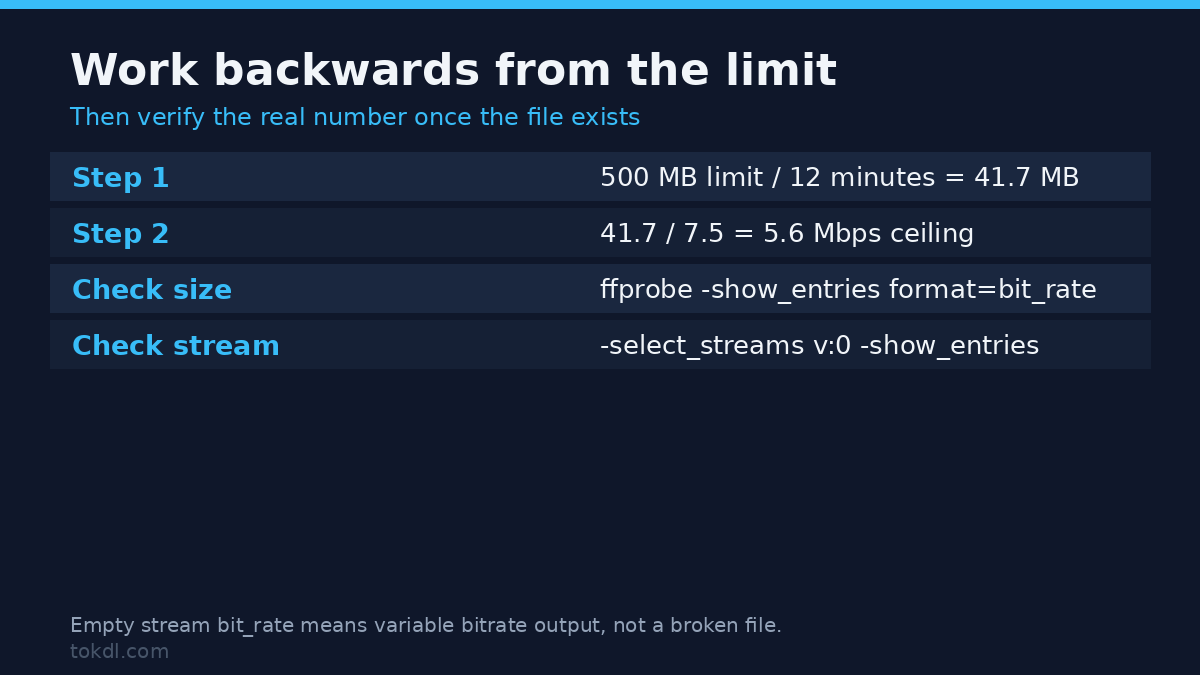
FFmpeg ships ffprobe, and it answers this in one command. The first version reads the container’s overall numbers:
ffprobe -v error -show_entries format=bit_rate,duration,size -of default=nw=1 input.mp4The second isolates the video stream, which is the figure you compare against your target:
ffprobe -v error -select_streams v:0 -show_entries stream=bit_rate,width,height,r_frame_rate -of default=nw=1 input.mp4If the stream-level bit_rate comes back empty, the file was written without that field. That is common with variable bitrate output, and it doesn’t mean anything is broken. MediaInfo will still report a figure derived from the actual stream. VLC does the same thing through Tools, then Media Information, then Codec details. On Windows you can also right-click the file, open Properties, and check the Details tab, which lists a total bit rate for most common formats.
Where this arithmetic stops being useful
Adaptive streaming has no single bitrate. An HLS or DASH file is a ladder of renditions, and the player switches between them as the connection changes, so there’s no one number to calculate. Intermediate editing codecs are equally stubborn in the other direction: ProRes and DNxHR run at 100 Mbps and beyond by design, and while the formula still holds, the results look absurd next to delivery formats. Those codecs exist to keep quality intact across several rounds of editing, not to be small.
There is also a ceiling where piling on bitrate stops buying you anything. Past a certain point you’re storing noise. For most talking-head and screen content, 1080p at 6 to 8 Mbps is already that ceiling, and doubling it changes nothing a viewer can see.
Quick answers
What bitrate should I use for 1080p?
Between 5 and 8 Mbps at 30 fps, and 8 to 12 Mbps at 60 fps. If the footage is mostly static, the bottom of that range is fine. Fast motion, confetti, water, and dense foliage all justify the top.
Does a higher bitrate always look better?
No, and the codec usually matters more than the number. H.265 gets comparable quality to H.264 at roughly half the bitrate, and a well-encoded 4 Mbps file can beat a lazily encoded 10 Mbps one. Bitrate is a budget, not a quality score.
How do I convert MB to Mbps quickly?
Multiply the size in MB by 8, then divide by the duration in seconds. A 300 MB file that runs 4 minutes is 300 × 8 ÷ 240, which is 10 Mbps.
How much is 1 Mbps over an hour?
About 450 MB. One megabit per second collects 7.5 MB per minute, so an hour of it lands at 7.5 × 60. That figure is the whole of how to calculate video bitrate in one line, and it is what makes streaming and storage plans comparable, and it’s why a 10 Mbps camera feed fills a terabyte drive in a couple of weeks of constant recording.
Why is my file bigger than the calculation predicted?
Usually variable bitrate. Your encoder protects quality on complex scenes and overshoots the average. Audio tracks, subtitle streams, and container overhead all add to the total as well. If the gap is larger than 10%, check whether your export preset quietly scaled the resolution up or changed the frame rate.
What to do with this
Learn the 7.5 figure and you’ll never be surprised by a file size again. Broadcast and delivery limits are almost always stated in megabytes, and bitrate targets are almost always stated in megabits per second, so the ability to move between the two is the difference between guessing and deciding.
If you want the wider picture on picking a number rather than calculating one, the guide to choosing a bitrate covers how codec, resolution, and motion all push the target up or down. And when a file has to shrink rather than be planned, compressing without visible quality loss is the next step.
Two references worth bookmarking if you do this often: the ffprobe documentation for the command-line side, and MediaInfo for a free desktop tool that reads every stream in a file without you typing anything.
[…] it when the limit is non-negotiable. Working out what bitrate that budget allows is arithmetic, and video bitrate calculation covers it without opening FFmpeg at […]
[…] is a settings problem rather than a merge problem. Raising the export bitrate costs file size, and calculating the bitrate you actually need is the quickest way to stop […]
[…] through a door it wouldn’t fit through before. If the bitrate still feels like guesswork, the bitrate calculation walkthrough works the same formula from the other direction, and the compression guide covers what you lose […]
[…] a clip matters, the recipe doesn’t change: software encoding, a slower preset, and a bitrate you chose on purpose rather than one a slider […]
[…] 1.7x to 2x step between rungs, so a step down is visible but not jarring. Watch the total as well: estimate the file size first, or a 60-minute 1080p rendition at 5 Mbps (about 2.2 GB) will surprise you on a metered […]