
How to Merge Videos: Combine Clips Into One File (2026 Guide)
Your camera stops recording at four gigabytes. Your phone splits a long take into ten-minute pieces. The upload field at the other end accepts exactly one file. So the footage of the thing you actually wanted to show is now four files, and nothing on your desktop is called “Join”.
Learning how to merge videos is mostly about avoiding one trap. The tools that promise a one-click join tend to re-encode every frame, which means your 4K footage comes back softer, or the file doubles in size, or a logo appears in the corner of the export. The fix is to join the clips at the container level instead of rebuilding the pictures inside them.
This guide covers that method, the apps already installed on your phone and computer, and the failure states that make a merged video slide out of sync halfway through.
How to merge videos without losing picture quality
If your clips share the same codec, resolution, and frame rate, you can join them by rewriting the container only. No frame is decoded or rebuilt, so the output carries the same picture quality as the source, and a 4 GB job finishes in seconds rather than minutes.
The technical name is concatenation. When the clips don’t match, an HEVC phone clip sitting next to an H.264 camera clip, or 4K sitting next to 1080p, the join has to rebuild frames. That’s the slow path, and it costs a generation of quality.
| Your clips | What happens |
|---|---|
| Same codec, resolution, and frame rate | Stream copy. Seconds, no quality loss |
| Different codec (H.264 plus HEVC) | Re-encode required |
| Different resolution | Re-encode, with scaling or letterboxing |
| Different frame rate | Re-encode, or the motion judders |
| HDR next to SDR | Re-encode, and the colours need grading |
| Encrypted or protected media | Not possible in any tool |
What you need before you start
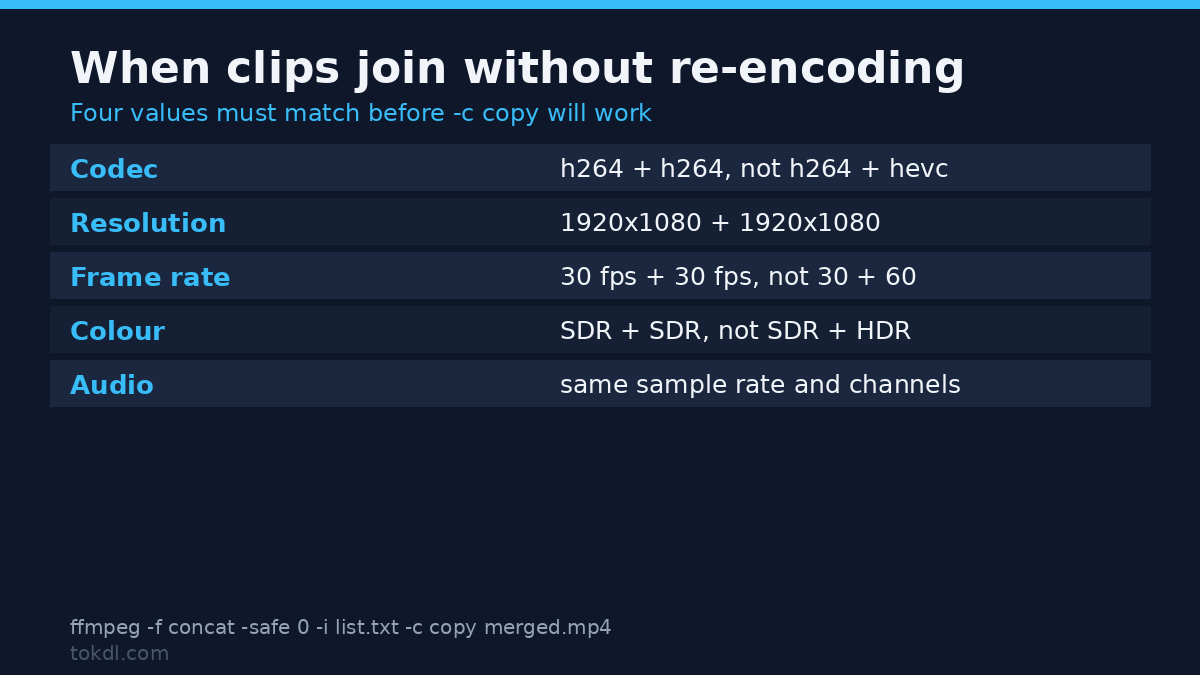
Before you decide how to merge videos, it’s worth checking what’s inside each file. Clips from the same camera in one session almost always match, so you can go straight to joining them. Clips from different devices usually don’t, and a two-minute check saves you from exporting a broken file that only fails at the join.
Install FFmpeg if you plan to use the command-line route. It’s free for Windows, macOS, and Linux, and it ships with a probe tool called ffprobe that reports exactly what’s inside a file.
ffprobe -v error -select_streams v:0 -show_entries stream=codec_name,width,height,r_frame_rate -of csv=p=0 clip01.mp4Run that against each clip and compare the four values. Two clips will join cleanly when the codec, the width and height, and the frame rate are all identical. If any value differs, expect to re-encode the mismatched files first.
Method 1: merge videos with FFmpeg (fastest, no re-encode)
Nothing else in this guide keeps the picture untouched. It works the same way on Windows, macOS, and Linux, and it’s the same engine that a lot of the apps in Method 2 run underneath.
- Put every clip in one folder and rename them so they sort in the order you want: clip01, clip02, clip03.
- Create a plain text file named
list.txtin that folder, with one line per clip.
file 'clip01.mp4'
file 'clip02.mp4'
file 'clip03.mp4'- In a terminal, from that folder, run the concat command.
ffmpeg -f concat -safe 0 -i list.txt -c copy merged.mp4The -c copy flag is the part that matters. It copies the video and audio streams instead of re-encoding them, which is why the job takes seconds and the quality doesn’t change.
Each source file starts its own timestamps at zero, and the concat demuxer shifts them so the clips run continuously. That shift is why the join works without touching a single frame. If you also need subtitle or multiple audio tracks carried over, add -map 0 before the output name.
When the clips genuinely don’t match, the concat filter (-filter_complex concat) is the alternative, and it re-encodes as part of the join. The official FFmpeg filter documentation covers both approaches in detail, and our FFmpeg command examples collect the variations that come up most often.
Method 2: merge videos in apps you already have
If you would rather drag clips than type commands, how to merge videos turns into a menu question, because every major platform now ships a tool that joins video. They re-encode on export, which is the trade you accept: convenience in exchange for one regeneration of the picture.
On iPhone and iPad, iMovie is the default answer. Create a project, import the clips, and drop them on the timeline in order. They butt together without a transition, and the share sheet exports at up to 4K on recent hardware. Apple keeps a step-by-step iMovie guide for both the Mac and mobile versions.
On Windows, Clipchamp is bundled with Windows 11 and handles a straightforward join in its free tier. Android users can use CapCut or Google Photos, and CapCut also runs on desktop. On a Mac, iMovie covers the same ground.
The honest caveat: none of these apps does a stream copy. Whatever you export has been decoded and encoded again. Export at the source resolution and the highest bitrate the app offers rather than accepting a default, and the difference stays hard to see.
What merge tools actually do, and where they fall short
Almost every tool in this space belongs to one of three families, and knowing which one you’re holding explains most of its behaviour.
Container joiners rewrite headers and leave the frames alone. FFmpeg and similar utilities live here. They’re instant and lossless, and they refuse to work when the sources differ.
Timeline editors rebuild every frame on export, so they accept mismatched material, titles, and music in exchange for time and a small quality cost.
Online merge pages are the third family. You upload, wait, and download a re-encoded result. Most free tiers cap file size, compress harder than you would choose yourself, and limit the output resolution. Read those limits before you upload anything private, because the upload is the part you can’t take back.
The shared limits are worth knowing too. Subtitles, chapters, and rotation flags normally come from the first clip only. Encrypted media can’t be joined by anything. Footage with a variable frame rate, which screen recorders and phones often produce, can drift out of sync the moment it meets a constant-rate clip.
Rights and responsible use
When the clips are yours, camera footage, screen recordings, your own uploads, merging them is your business and nobody else’s.
When they aren’t, a join changes nothing about ownership. Cutting two seconds off someone else’s clip, or dropping it between your own shots, doesn’t make the footage yours. Copyright stays with the person who filmed it, and publishing a compilation built from other people’s material is the same act as uploading that material once.
Keeping a copy for personal reference or study sits differently from redistribution, monetisation, or a reel that carries advertising. If you plan to reuse a clip publicly, get permission or a licence, and keep the credit intact.
Never crop a watermark or a credit line out of the frame in the name of a cleaner join, because that removes the one thing that told viewers where the footage came from. When the clips come from a video platform, that platform’s terms sit on top of the creator’s rights, and the YouTube Terms of Service are a fair example of how reuse is bounded.
Troubleshooting: why a merged video goes wrong
The audio drifts out of sync after the join
The cause is almost always a variable frame rate source, common in phone footage and screen recordings. The clip reports 30 fps but delivers frames unevenly, so the audio and video disagree about time. Re-encode that clip to a constant frame rate before joining, using -vsync cfr -r 30, and the drift stops.
The second clip is black, or the player freezes at the join
That’s what a stream copy does when the codecs or resolutions differ. FFmpeg writes the file happily and the result breaks on playback. Re-encode the mismatched clip to match the first one, then run the concat again.
FFmpeg warns about non-monotonic DTS
The clips carry overlapping or out-of-order timestamps, usually after a previous edit. Add -fflags +genpts before the input, or re-encode the offending clip, and the warning clears.
Subtitles, chapters, or rotation disappeared
A stream copy carries only the default video and audio tracks. Anything else needs an explicit -map 0. The rotation flag lives in the metadata of the first file, so a clip that was rotated on import loses that correction when it isn’t the first one in the list.
The export is huge, or it looks softer than the source
The app re-encoded at a bitrate it chose, not one you chose. That’s a settings problem rather than a merge problem. Raising the export bitrate costs file size, and calculating the bitrate you actually need is the quickest way to stop guessing.
Frequently asked questions
How do I merge videos without losing quality?
Join them with a stream copy instead of re-encoding. In FFmpeg that means the concat demuxer with -c copy, which moves the existing frames into a new container and never rebuilds them.
Can I merge videos recorded at different resolutions?
Yes, but only with a re-encode. A stream copy needs matching resolution, codec, and frame rate, so mixed sources must be scaled to one common size before they can be joined.
Does merging reduce video quality?
Not on its own. The loss comes from re-encoding, not from joining. Consumer apps re-encode every export, so the quality you get back depends on the export settings rather than on the merge itself.
Is there a free way to join clips on a phone?
Yes. iMovie on iPhone and iPad is free, and CapCut covers Android and desktop. Both re-encode on export, so match the export resolution and bitrate to your source footage.
Why is my merged video out of sync?
A variable frame rate source is the usual reason. Phone recordings and screen captures rarely deliver frames at perfectly even intervals, so converting the clip to a constant frame rate before joining fixes the drift.
Can I join protected or encrypted video files?
No. Encryption is designed to prevent exactly this, and no editor, converter, or online service can merge that material without breaking the protection first.
Do the clips have to be in order before I start?
The tool follows the order you give it, so fix the sequence in the list file or on the timeline first. Naming files clip01 to clip09 keeps the order predictable, and clip10 sorts before clip2 unless you zero-pad the numbers.
Which method should you use?
There’s no single right answer to how to merge videos, only a trade between speed and picture quality. The clips in front of you decide which side of that trade you want.
Reach for FFmpeg when the clips come from the same camera or phone, or when you can match their settings. It’s the only option here that keeps the original picture, and on matched files it takes seconds.
Use a timeline app when the clips are genuinely different, or when you want titles, music, and trimming in the same pass. Accept that the export is a fresh encode and set the quality yourself instead of letting the default decide.
Skip the online merge sites for anything long, private, or already high quality. The upload limits and the forced re-encode usually cost more than the convenience is worth.
And check the small jobs first. If you only need to shorten one clip rather than combine several, trimming a video is a simpler task. If the real problem is that the finished file won’t fit an upload cap, compressing the video solves it faster than rejoining anything.
[…] each half with its own constant offset, then place the two pieces back together on one timeline; joining clips into one file covers that step. Two offsets across one file usually beat one offset that is wrong at both […]
[…] same idea runs in reverse in the guide to merging several clips into a single […]
[…] joined by the concat demuxer measured exactly 8.00 s. An end-to-end join needs no filter at all (merge videos). The same pair blended with a one-second fade measured 7.00 s. You paid one second for the video […]
[…] the take and re-align the segments. Combining angles into one file has its own pitfalls, which merging clips into one file walks […]