
24 vs 30 vs 60 FPS: Which Frame Rate Should You Use (2026 Guide)
A clip shot at 24 frames per second and one shot at 60 can show the same scene and feel like two different events. The first carries the weight of cinema; the second has the flat, hyper-clear look of a sports replay. The 24 vs 30 vs 60 fps decision shapes how motion reads, how big the file gets, and how the video survives a platform’s re-encode.
Most phones and cameras default to 30 fps and leave it there. For talking heads and everyday clips that default is genuinely right. For everything else it quietly flattens what you shot, so motion that should glide comes out stuttery, or footage that should feel crisp turns smeared.
One more thing before the numbers: the platform you upload to does a final pass of its own. Instagram, TikTok and YouTube re-encode what you send them, and none of them repairs bad cadence. Part of this choice is deciding what survives that pass.
24 vs 30 vs 60 fps: The Short Answer
Choose 24 fps for anything meant to feel like film: narrative, drama, interviews shot with intent. Choose 30 fps for general online video, vlogs, tutorials, and footage you will edit later. Choose 60 fps for gaming, sports, fast action, and any clip you might slow down. If you never touch camera settings, 30 fps is the safe default.
This is not a quality ladder. 60 fps is not a better 30 fps; it is a smoother one, and smoothness is a style with its own costs. Film looks the way it does partly because 24 samples per second blur motion the way eyes do.
What Frame Rate Actually Means
Every video is a row of still images played in order. The frame rate, written as fps, is how many of those images appear each second. At 24 the steps between images are fairly large; at 60 they are small enough that fast movement looks continuous.
The number also meets your display’s refresh rate, usually 60 or 120 Hz. When the two do not divide evenly, the player repeats frames and you can see judder. That interaction, not the camera spec, causes most of the complaints in the troubleshooting section below.
Regional standards linger here too. Broadcast video in North America settled on 30 fps and in most of Europe on 25, and web tools still offer both. The full history of those standards is longer than this guide needs, so the Wikipedia frame rate article is the place for it.
What 24, 30 and 60 fps Each Do Best
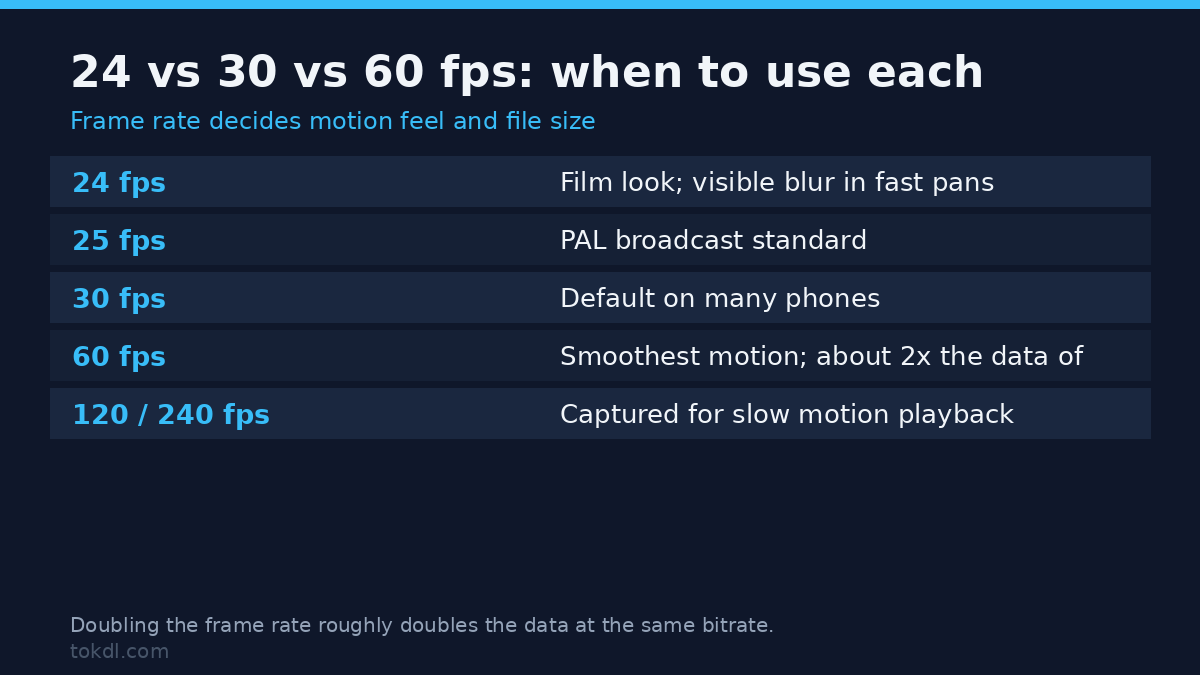
Each rate exists because some part of the industry needed it. Film wanted a look, broadcast wanted compatibility, and gaming wanted responsiveness. The table shows what each choice buys you.
| Frame rate | Look | Best for | Cost |
|---|---|---|---|
| 24 fps | Cinematic, with natural motion blur | Narrative, drama, interviews | Pans can stutter on 60 Hz screens |
| 30 fps | Clean and neutral, the web default | Vlogs, tutorials, social video | Feels less filmic than 24 |
| 60 fps | Very smooth, every movement reads | Gaming, sports, slow motion | Larger files and a flat video look |
Once you see the 24 vs 30 vs 60 fps lineup as a motion-style menu, the best rate stops being a spec-sheet argument. Frame rate also interacts with resolution, because a 4K60 clip captures four times the pixels of a 1080p clip and samples them twice as often as one at 30 fps. That is why high-frame-rate footage hits memory card limits first.
Resolution and bitrate are the other half of the look. A separate resolution and bitrate guide covers that side in detail.
How to Shoot at the Frame Rate You Want
The cleanest fix is to record correctly the first time, because conversion always costs something. On an iPhone, open Settings, then Camera, then Record Video: the list pairs each resolution with 24, 30 or 60 fps, so pick the row that matches how you shoot. On Android, the control usually sits inside the camera app under Pro or Advanced video settings, labelled Frame rate or FPS.
On a mirrorless or DSLR, the frame rate lives in the movie menu, often labelled Frame Rate or FPS, with 24, 25, 30, 50 and 60 as typical options. Some bodies crop the sensor or drop stabilization at 60 fps, so check the manual before committing a shoot to it.
Then set the shutter speed near double the frame rate, the classic 180-degree rule: about 1/50 of a second at 24 fps, 1/60 at 30, and 1/120 at 60. That keeps motion blur natural instead of strobing.
How to Convert a Video to a Different Frame Rate
If the footage is already recorded, you can still change the number, with one honest caveat: conversion rearranges the frames you have, it does not invent motion that was never captured. For most people the easiest path is the editor they already use. Clipchamp and CapCut both expose frame rate choices in their export menus, so set the target there and let the app re-encode.
When you need exact control, ffmpeg does it in one line. It runs on Windows, macOS and Linux:
ffmpeg -i input.mp4 -vf fps=60 -c:v libx264 -crf 18 -c:a copy output.mp4The fps filter repeats or drops frames until the count matches, and crf 18 keeps the re-encode visually close to the source. Copying the audio with -c:a copy avoids a second generation of damage. The output file grows or shrinks depending on which direction you moved.
Inside an editor, do not confuse a frame rate change with a speed change. Slowing a 30 fps clip to 24 in the timeline alters its duration and its pitch, which is a speed effect, not a conversion. If footage suddenly runs slow or fast after you fixed the fps, you used the wrong control.
What Frame Rate Converters Actually Do, and What They Can’t
Tools in this space fall into two camps. Conformers repeat or drop frames to hit the target rate, which is safe and artifact-free but adds no new motion. Interpolators try to synthesize the in-between frames, and they can look eerily smooth until they break: fast hands, water spray and camera pans produce warping around edges.
So a 30-to-60 conversion with a conformer yields a 60 fps file that still moves like 30. The same conversion with an interpolator yields motion that never happened, which viewers read as the soap-opera effect. No converter can recover motion blur that was never recorded, and no preset labelled AI or enhance changes that.
Conversion is genuinely for matching a platform’s preferred cadence, fixing 24 fps clips that judder on a 60 Hz display, and standardizing mixed footage before an edit. Those jobs it does well.
Rights and Responsible Use
Changing a video’s frame rate changes nothing about who owns it. Footage belongs to the person who recorded it, and a converted copy is still a copy. Retiming a clip you found online, even for personal reference, does not make it yours, and re-uploading it redistributes someone else’s work.
Work from your own recordings, footage you have permission to use, or clips under a license that covers editing and republishing. Stock sites set those terms, so read the license before you transform anything. If the destination is YouTube, YouTube’s Terms of Service list what you may not upload there, and other platforms publish the same kind of rules in their own terms.
Troubleshooting: Frame Rate Problems and Their Causes
Your 24 fps clips stutter during pans. That is the rate doing its job: 24 samples a second cannot describe a fast sideways sweep smoothly. Slow the movement, hold the shot, or shoot that action at 30 or 60.
Everything looks like a soap opera, even footage you know is film. That is display motion smoothing, not your file: modern TVs interpolate 24 fps content up to 60 or 120, and the effect is strongest in sports picture presets. Look for a motion setting, called TruMotion on LG, Motionflow on Sony, or Auto Motion Plus on Samsung, and switch it off.
A converted 60 fps video warps around moving objects. The converter interpolated frames and guessed wrong, usually around hands, water or fast cuts. Use a conforming tool that duplicates frames instead, or keep the original rate; presets that promise smooth 60 from old 24 footage are the usual culprits.
Screen recordings play too fast, too slow, or stutter after editing. Phones and many capture tools record at a variable frame rate, where the count changes with scene complexity, and editors assume a constant one. Normalize the file to a fixed rate before editing, and the screen recording guide covers the capture side of this problem.
The audio drifts out of sync after a frame rate change. The video was re-timed but the audio kept its old length, or a tool changed the file’s time base instead of its frames. Convert the video stream with an fps filter and copy the audio untouched, as in the ffmpeg example above, and sync survives.
The 60 fps file is twice the size you expected and uploads slowly. More frames per second means more data at the same quality, and many cameras raise the bitrate automatically at 60. If size is the real problem, compressing video without quality loss is the fix, or deliver at 30.
Frequently Asked Questions
Does 24 vs 30 vs 60 fps matter for online video?
Yes, for motion; not really for sharpness. Platforms re-encode what you upload, and compression removes fine detail more readily than it removes frame rate. A stuttery source streams stuttery, and a smooth source streams smooth, so decide by how the footage should move.
Is 60 fps always better than 30 fps?
No, smoother is not automatically better. 60 fps suits fast action and slow motion, while 30 fps suits faces and conversation. For narrative footage, 60 can read as cheap video, and it grows your file size noticeably.
Why does 24 fps look choppy on my TV?
Because 24 does not divide evenly into a 60 Hz refresh rate. The display must show some frames longer than others, and the unevenness reads as judder. A 120 Hz panel removes it, which is why the same film can look fine on one screen and stuttery on another.
Can I convert 30 fps to 60 fps without losing quality?
You can raise the number, not the motion. A conformer duplicates frames, so the file says 60 but moves like 30. An interpolator guesses new frames and risks artifacts, so keep the original as your master and convert only a copy for delivery.
What frame rate should I use for gaming clips?
Record gaming at 60 fps when the game runs at 60 or higher. Capturing a fast game at 30 drops whole moments between frames. If you plan a slow-motion replay, record at 60 and slow it down in editing.
What frame rate do YouTube, Instagram and TikTok use?
They accept a wide range and re-encode on upload. YouTube keeps 24, 30 and 60 in its delivery formats, and short-form platforms commonly normalize toward 30 or 60. Upload the rate you shot rather than converting to a guessed recommendation.
Does shooting at 60 fps make slow motion better?
Only when you slow the clip down in editing. Halved, 60 fps footage still delivers 30 fresh frames per second of motion, which looks smooth; halved 30 fps footage shows 15 and looks like a slideshow. That is the case where extra captured frames pay off visibly.
The Decision: Pick a Frame Rate by Situation
If the video tells a story, shoot 24. If a person is talking to camera, shoot 30. If it moves fast, shoot 60, and if you may want slow motion, shoot 60 and do the slowing in editing. When you are unsure, 30 sits in the middle of the 24 vs 30 vs 60 fps range and looks acceptable to the most people in the most places.
Match the choice to the destination, not the gear. Gaming and sports channels expect 60; narrative channels expect 24; general channels rarely punish 30. Storage, upload time and playback on older devices all cost more as the rate climbs, so pick the lowest rate that serves the footage.
Set the camera once, on purpose, and stop second-guessing. The right frame rate is the one you chose for a reason, not the one the menu happened to show.
[…] frame holds, and frame rate decides how often it refreshes. The resolution and bitrate guide and the frame rate guide cover those two, and both interact with the shape you choose […]
[…] in YouTube’s upload settings guide. Frame rate and resolution choices matter here too; our frame rate comparison covers when 60 fps is worth the extra […]
[…] the pixel count is what makes the numbers move so sharply. Frame rate does something similar, with 60 fps roughly doubling the data of 30 fps at the same quality […]
[…] Good slow motion needs a source shot at a high frame rate or interpolation you have to ask for. The frame rate comparison explains why 60 fps footage slows down so much […]
[…] from reading the output back on FFmpeg 7.1.5. If you’re still picking a rate to shoot at, the 24 vs 30 vs 60 fps guide covers that decision. This article is about the file you already have, where the timing is […]
[…] GOP YouTube asks for. At 60 fps those numbers halve in time. If you know your frame rate from the 24 vs 30 vs 60 FPS guide, you can convert between the […]
[…] to you, use the camera route next. If you are weighing output frame rates first, our guide to 24 vs 30 vs 60 fps covers the […]