
Video Keyframe Interval: How to Set GOP Length (and Why It Matters)
You trim a clip with -c copy to avoid touching the quality, ask FFmpeg for two seconds starting at 7.4, and the file that comes back is 9.5 seconds long. Nothing’s broken and no flag is wrong. The copy had to start at the previous keyframe, and in that file the keyframe interval was 8 seconds wide.
That’s the whole job of the keyframe interval: it decides how precisely anything can jump into a video, and it quietly decides how much the file weighs. Get it wrong one way and your uploads are bloated. Get it wrong the other way and every seek, scrubbing drag and stream segment lands in the wrong place.
What you’ll learn:
- What a keyframe interval is, in frames and in seconds, and what
-gcontrols. - How to read the interval out of a finished file with one
ffprobecommand. - Measured numbers: what 0.5 s to 8 s intervals did to size and quality here.
- Why a stream-copy cut landed 7.4 seconds early, and how to avoid it.
- The setting to use for YouTube, streaming, proxy editing and archives.
What the keyframe interval controls
Modern video is inter-frame compressed. Most frames store only the difference from the frames around them: P frames look backwards, B frames look both ways. That’s why a 12-second 720p clip fits in a few megabytes instead of hundreds.
A keyframe (an I frame) is the exception. It carries a complete picture, so the decoder can start there with no history. A group of pictures, or GOP, is everything from one keyframe up to the frame before the next one. The keyframe interval is the distance between them, and it’s the length of that group.
In FFmpeg you set it with -g, which counts frames, not seconds. A keyframe interval in seconds only means something once you know the frame rate: at 30 fps, -g 30 is 1 second, -g 60 is 2 seconds, and -g 15 matches the half-frame-rate GOP YouTube asks for. At 60 fps those numbers halve in time. If you know your frame rate from the 24 vs 30 vs 60 FPS guide, you can convert between the two.
Three things change when you move that number: file size, because keyframes are the most expensive frames in the stream and fewer of them means a smaller file; jumping in, because any seek, thumbnail or segment boundary can only start on a keyframe; and cut precision, because a stream copy can only begin at a keyframe, which is where the 9.5-second clip came from.
How to check it on any video
Don’t trust your encode command. Read the file back:
ffprobe -v error -select_streams v:0 -skip_frame nokey
  -show_entries frame=best_effort_timestamp_time -of csv=p=0 input.mp4
-skip_frame nokey tells the decoder to throw away everything that isn’t a keyframe, so it’s fast even on a long file. The output lists keyframe timestamps, which is the keyframe interval expressed as positions rather than a gap:
0.000000, 1.000000, 2.000000, 3.000000, 4.000000, 5.000000,
6.000000, 7.000000, 8.000000, 9.000000, 10.000000, 11.000000
Twelve timestamps in a 12-second clip means an interval of exactly 1 second. To confirm the frame count, add:
ffprobe -v error -select_streams v:0 -count_frames
  -show_entries stream=nb_read_frames -of csv=p=0 input.mp4
That reported 360 frames for the same file, and 360 divided by 12 keyframes gives a 30-frame group, which is the 1 second you’d already suspected. I ran both commands here against FFmpeg 7.1.5 before writing any of the numbers below.
Measured: keyframe interval vs file size
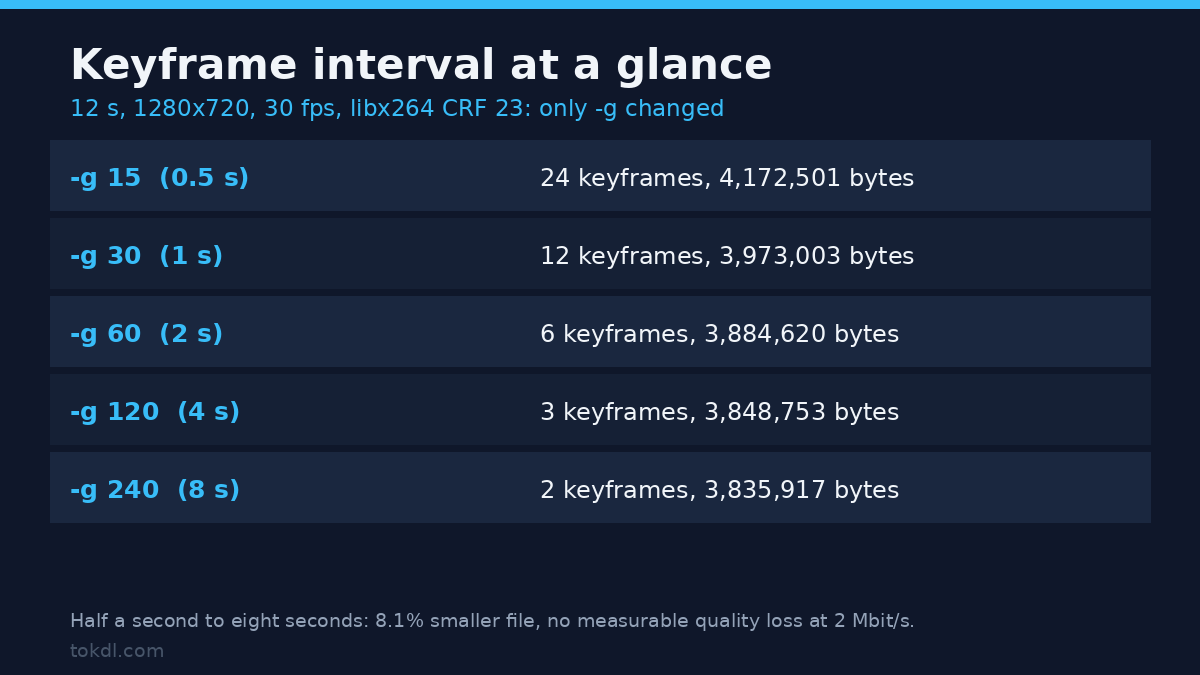
Method first, because the numbers are only as good as the test. I generated a 12-second 1280×720 clip at 30 fps from FFmpeg’s testsrc2 pattern, encoded a master at CRF 18, then encoded it five times with libx264 -preset veryfast -crf 23, changing only -g. Audio was copied, and every encode ran twice.
| -g (frames) | Keyframe interval | Keyframes in 360 frames | File size | Change vs 0.5 s |
|---|---|---|---|---|
| 15 | 0.5 s | 24 | 4,172,501 bytes (3.98 MiB) | – |
| 30 | 1.0 s | 12 | 3,973,003 bytes (3.79 MiB) | -4.8% |
| 60 | 2.0 s | 6 | 3,884,620 bytes (3.70 MiB) | -6.9% |
| 120 | 4.0 s | 3 | 3,848,753 bytes (3.67 MiB) | -7.8% |
| 240 | 8.0 s | 2 | 3,835,917 bytes (3.66 MiB) | -8.1% |
Stretching the keyframe interval from half a second to eight seconds saved 336,584 bytes, or 8.1% of the smallest-interval file. Most of the saving arrives early: 0.5 s to 1 s already takes 4.8% of the 8.1%, and the last four seconds of interval buy 0.3%.
Two caveats. This source is a synthetic test pattern, so it has almost no scene changes, and the 24 keyframes out of 360 frames is a higher share than you’ll see in a 10-minute video. Longer footage shifts the trade-off further in favour of the long interval, not less.
Does a long keyframe interval cost quality?
On this clip, almost nothing. I re-encoded at a fixed 2 Mbit/s with GOP 30 and GOP 240 and measured both against the master.
| Setting | File size | PSNR vs master | SSIM vs master |
|---|---|---|---|
2 Mbit/s, -g 30 (1 s) |
3,263,484 bytes (3.11 MiB) | 41.50 dB | 0.99187 |
2 Mbit/s, -g 240 (8 s) |
3,206,487 bytes (3.06 MiB) | 41.57 dB | 0.99191 |
The 8-second interval came out 1.7% smaller and 0.076 dB better, which is measurement noise rather than an improvement. On real footage with fast motion the gap widens, but the direction doesn’t change: what you gain from a long keyframe interval shows up as a smaller file, not as visibly better pictures. The cost sits somewhere else, and it shows up the moment you try to move inside the file.
The trap: stream-copy cuts start at a keyframe
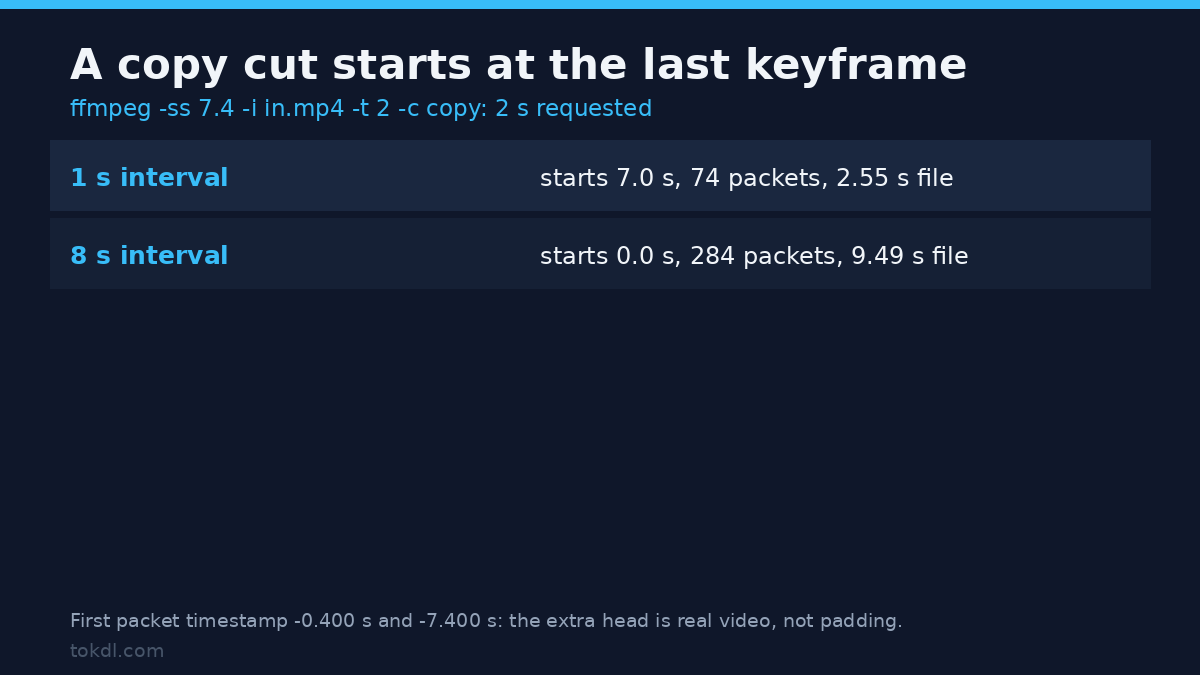
Here’s the experiment that started this article. Take the two extreme files from the size test, then ask each for a 2-second clip starting at 7.4 seconds, without re-encoding:
ffmpeg -y -ss 7.4 -i input.mp4 -t 2 -c copy cut.mp4Then verify what you got:
ffprobe -v error -select_streams v:0
-show_entries packet=pts_time,flags -of csv=p=0 cut.mp4 | head -1| Source keyframe interval | First packet | Packets in the file | Declared duration |
|---|---|---|---|
1.0 s (-g 30) |
-0.400000, keyframe | 74 | 2.55 s |
8.0 s (-g 240) |
-7.400000, keyframe | 284 | 9.49 s |
With the 1-second interval, the previous keyframe sits at 7.0 s, so the copy carries 0.4 extra seconds. With the 8-second interval it sits at 0.0, so the “2-second clip” carries 7.4 extra seconds of the original and ends up 9.49 seconds long. The negative timestamp on the first packet is FFmpeg being honest: the file starts before the point you asked for.
For a fast lossless cut, cut on a keyframe, which means picking timestamps from the list you printed earlier. If you need an arbitrary start point, re-encode the head or the whole clip, or set a short keyframe interval before you record. It’s the same reason a long GOP makes scrubbing feel heavy in an editor: every playhead drag is a jump to a keyframe plus decoding.
Scenecut overrides your keyframe interval
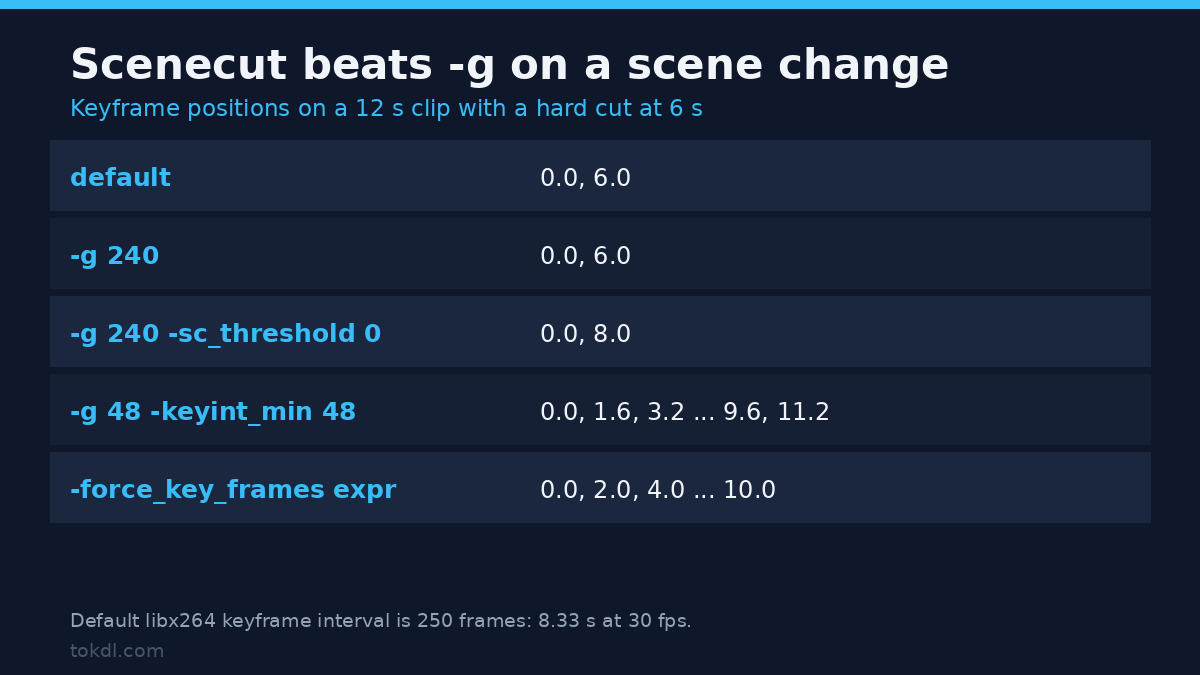
Your -g value is a maximum, not a schedule. x264 also drops a keyframe on a scene change, so don’t be surprised when the file holds more keyframes than the arithmetic suggests. I built a 12-second clip with a hard cut at 6 seconds and encoded it five ways with libx264 -preset veryfast -crf 23.
| Command | Keyframe timestamps |
|---|---|
default (no -g) |
0.0, 6.0 |
-g 240 |
0.0, 6.0 |
-g 240 -sc_threshold 0 |
0.0, 8.0 |
-g 48 -keyint_min 48 -sc_threshold 0 |
0.0, 1.6, 3.2, 4.8, 6.4, 8.0, 9.6, 11.2 |
-force_key_frames "expr:gte(t,n_forced*2)" |
0.0, 2.0, 4.0, 6.0, 8.0, 10.0 |
Three things are worth reading off that table. The default keyframe interval for libx264 is 250 frames, 8.33 seconds at 30 fps, and a 22-second file with no scene changes gave keyframes at 0, 8.333 and 16.667 seconds. The cut at 6 seconds forced a keyframe even when -g 240 had another 2 seconds to run. And -sc_threshold 0 with -keyint_min equal to -g gives an exact fixed grid, which is what you want for streaming.
If you need keyframes on exact times rather than every N frames, force them, as in the last row. FFmpeg’s own H.264 encoding guide shows the -x264-params keyint=123:min-keyint=20 form for the same job and warns against the older x264opts spelling, which is on its way out.
Which keyframe interval should you use?
The honest answer is that it depends on what has to jump into the file. These are the settings I’d start from:
| What you’re doing | Keyframe interval | Why |
|---|---|---|
| YouTube upload | Closed GOP of half the frame rate: 15 frames at 30 fps | It’s what YouTube’s own upload settings ask for |
| Live streaming or HLS | 2 s, forced | Segments can only cut on a keyframe, so the interval sets the segment length |
| Editing proxies and scrubbing | 0.5 s to 1 s | Every playhead move pays for the distance to the last keyframe |
| Cutting without re-encoding | 1 s or shorter, or forced keyframes on your cut points | A stream copy can’t start between keyframes |
| An archive you only play start to finish | Leave it alone (250 frames by default) | Seeking rarely matters and the file stays smallest |
YouTube’s own recommendation is a closed GOP of half the frame rate, so 15 frames at 30 fps and 30 frames at 60 fps, which lands on 0.5 s either way. Closed means the group doesn’t reference frames from the group before it, so every keyframe is a valid starting point. The recommended upload encoding settings page also asks for H.264 High Profile at a variable bitrate.
If you’re going to keep one rule, make it this one: the keyframe interval is the resolution of everything you do to a video afterwards. Half a second to a second is the safe default when the file will be edited, cut, streamed or scrubbed. Leave it long only when the file is finished.
Common mistakes
Setting -g and assuming the file matches. Scenecut adds keyframes and a copy cut keeps whatever the source had, so you can’t trust the command line. Read the delivered file with the ffprobe command above instead of trusting the command line.
Thinking in seconds everywhere. -g is frames, so -g 60 is 2 seconds at 30 fps and 1 second at 60 fps. The same project exported at two frame rates ends up with two different keyframe intervals.
Going all-intra for “maximum quality”. Encoding the test clip with -g 1 produced 8,774,167 bytes against 3,973,003 for the 1-second interval, 2.21 times the size, with no visible gain at the same CRF. All-intra belongs in editing intermediates such as ProRes and DNxHD, where the point is decode speed, not delivery.
FAQ
What keyframe interval should I use for YouTube? Fifteen frames at 30 fps, which is 0.5 s and matches YouTube’s “GOP of half the frame rate” recommendation. The platform re-encodes anyway, so a clean, predictable interval matters more than the exact number.
Why doesn’t my file have keyframes exactly -g frames apart? Because -g is a maximum. Scene changes insert extra keyframes, and the default 250-frame interval means a short clip may only have one keyframe at the start. Add -sc_threshold 0 and set -keyint_min equal to -g if you need the fixed grid.
Does a longer keyframe interval make a video look worse? Not by itself. At a fixed bitrate the 8-second interval measured 41.57 dB against 41.50 dB for the 1-second interval, a difference nobody can see. At a fixed quality setting it makes the file smaller. The cost is time to seek, not picture quality.
Can I change the keyframe interval without re-encoding? No, keyframes are baked into the compressed stream, so you’d have to decode and encode the whole file again. That’s why it’s worth deciding before you export, not after.
Conclusion
A keyframe interval is the distance between the frames that don’t need any other frame to decode. Set it short and seeking, scrubbing and lossless cutting all behave; set it long and the file shrinks, by about 8% on the clip I tested, with no measurable quality penalty at a fixed bitrate.
Check the interval of anything you’re about to edit or upload with -skip_frame nokey and ffprobe, force keyframes on exact times when a player or a packager needs a grid, and remember that -c copy can only start where a keyframe is. If you want the flag-level detail around the rest of these commands, the FFmpeg commands guide covers the everyday set, the bitrate guide explains the other half of the size equation, and the H264 vs H265 comparison shows what changes when you swap the codec under the same keyframe interval.
One last note, because it matters if you test on shared hardware: this container reports 64 CPUs through nproc, but its cgroup quota is 2 CPUs on a host whose load average sat near 40 while I worked. Encode times ranged from 2.4 to 3.6 seconds for identical work, so I can’t make a speed claim about keyframe intervals from this box. Sizes and keyframe positions were byte-identical across runs, and those are the numbers above.